Help guide · macOS 14.4+
Display your logo in SVG Fractal mode
Import your brand's logo as an SVG and Spiralyst Lab renders it as live, fractalized line art — ideal for branded displays, booths, and event screens. For the cleanest result, use an outline (stroke) version of your logo, not a filled one.
-
Switch to SVG Fractal mode. In the Visual tab, open the
Type menu and choose SVG Fractal. The SVG Fractal controls
appear below — Preset, Rule, Iterations, and Import custom SVG.
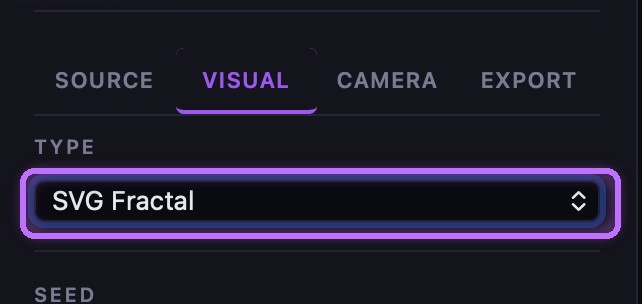
Visual tab → set Type to SVG Fractal. -
Import your logo. Click Import custom SVG… and choose your
.svgfile. Spiralyst Lab renders the vector art and adds it to the Preset list, named after your file — pick it there any time.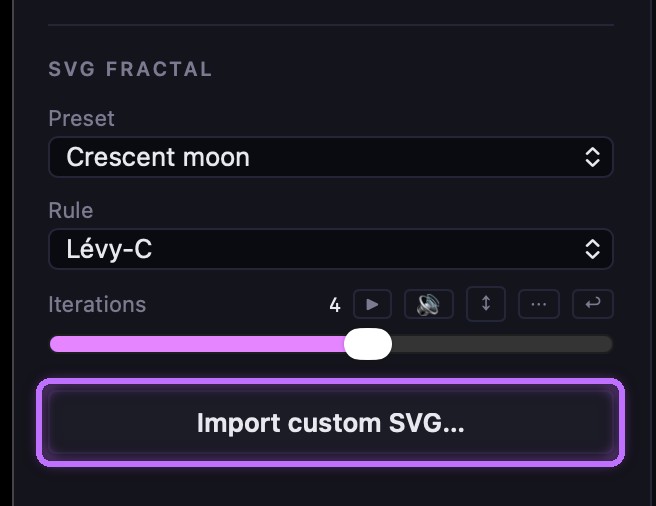
Click Import custom SVG… and choose your file. 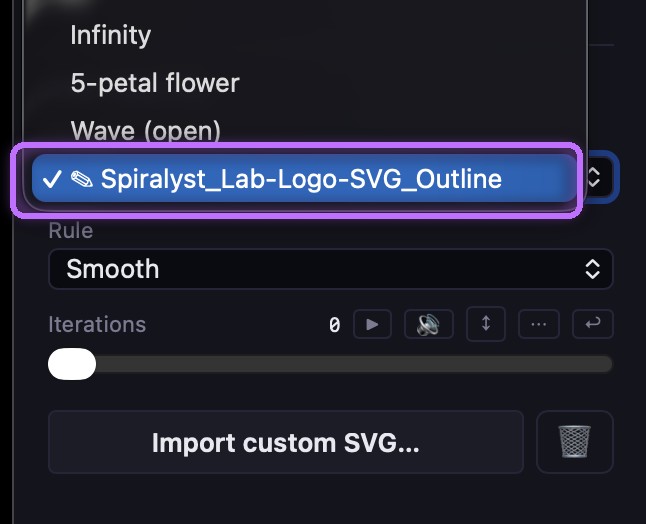
Your import shows up as a Preset, named after the file. -
Use an outline, not a fill. SVG Fractal grows the fractal along your logo's
path edges, so an outline / line-art version works best — clean
strokes, ideally one color, with no large filled shapes. In your vector editor, convert text
and shapes to outlined paths (strokes) and drop heavy fills before exporting.
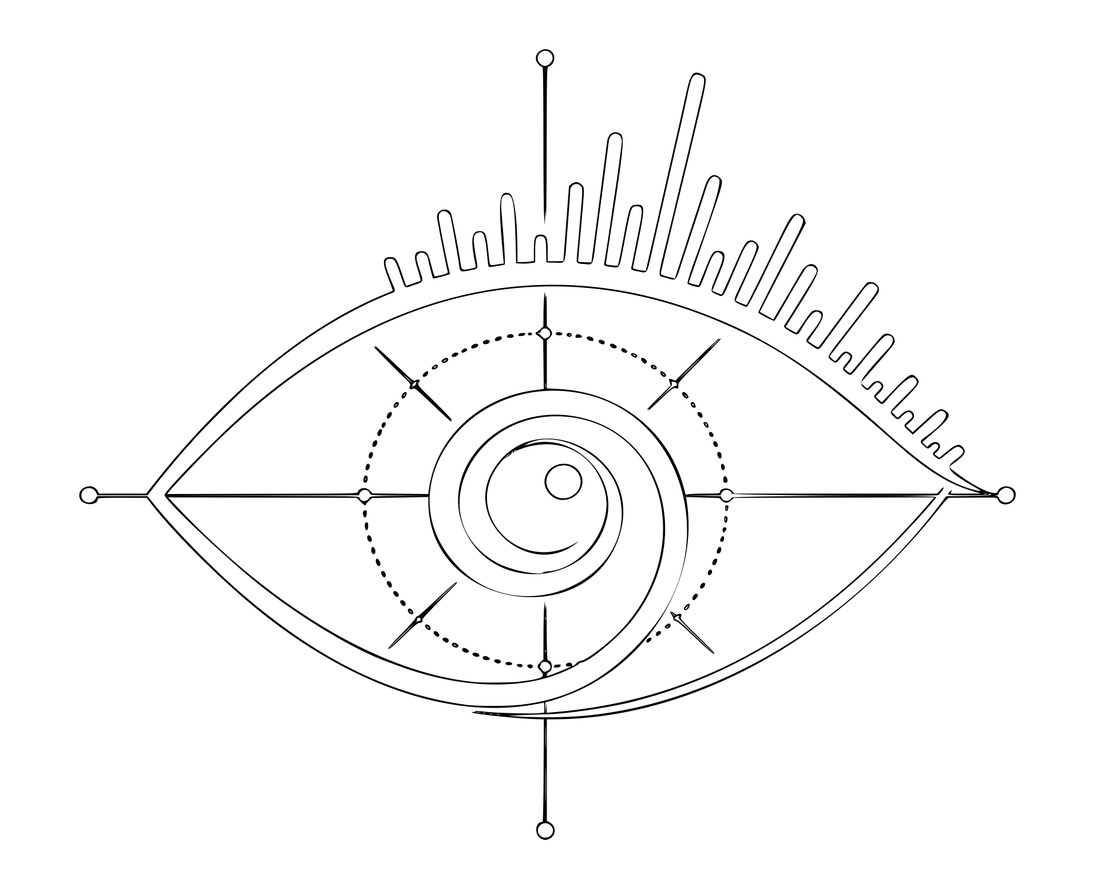
The example logo as an outline (strokes only). 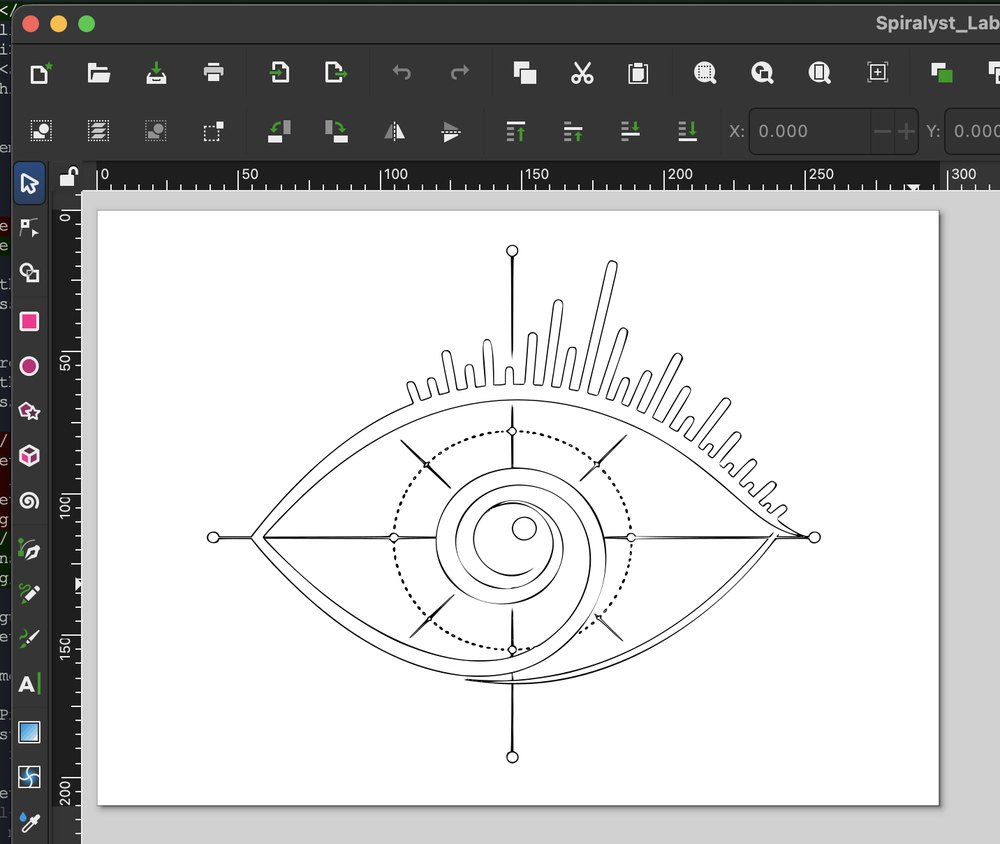
Prepared as outlined paths in a vector editor. -
Tune the Rule and Iterations. With your logo selected as the Preset, pick a
Rule — the edge style applied to every line (Koch, Cesàro, Smooth, Lévy-C,
Koch-square, Koch-inward, Zigzag) — and raise Iterations to grow the detail
(0 = your plain outline; higher = more intricate, but heavier to render).
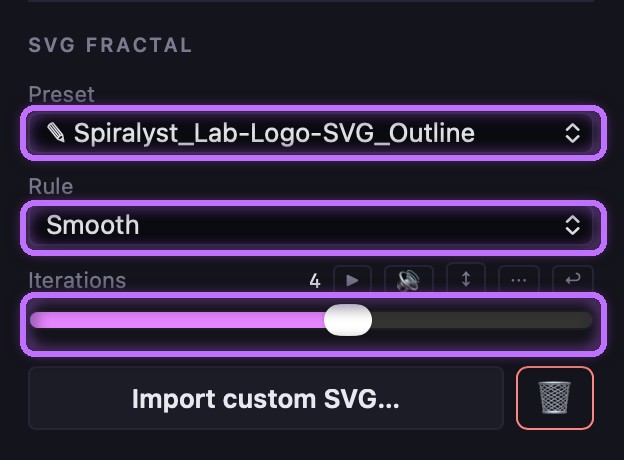
Pick your logo as the Preset, then set Rule + Iterations. 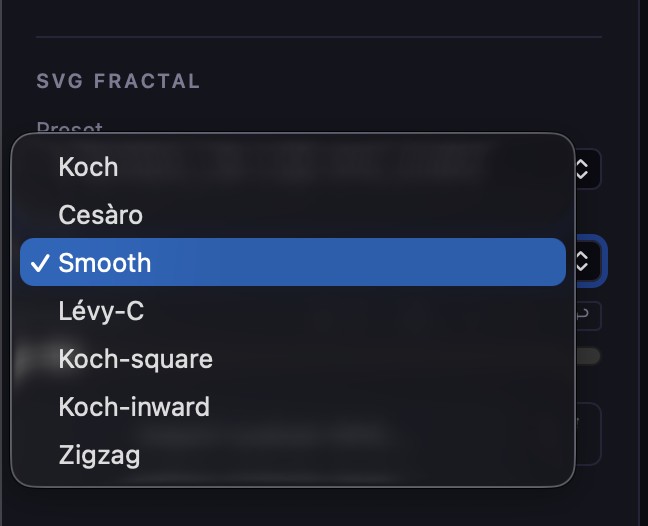
Rule options — the edge style for every line. -
Display it. Your logo now renders live on the canvas. Color it in the Visual
tab's color controls, animate it to your audio, send it fullscreen for a gig or booth, or
export a still/video.
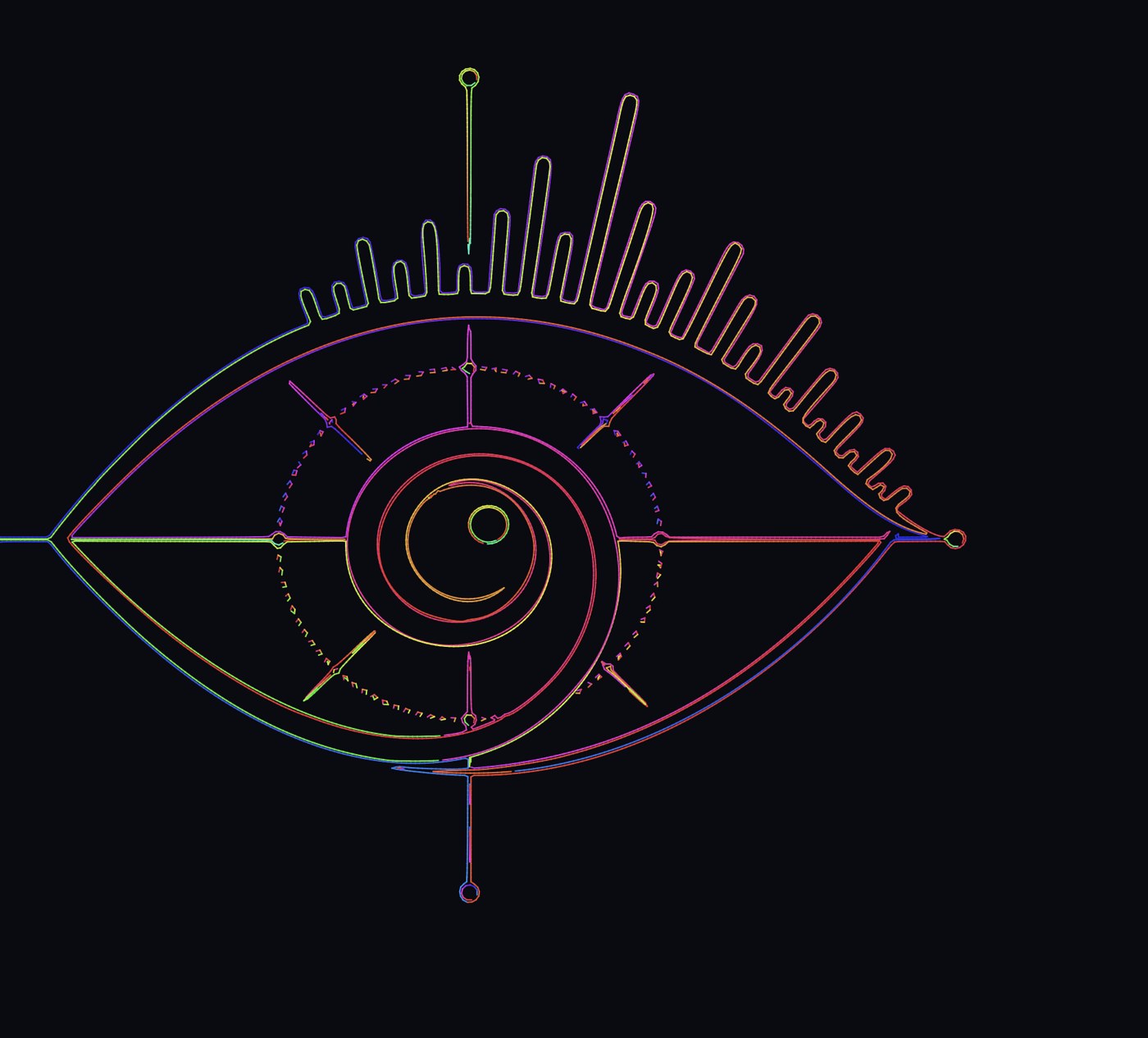
The imported logo, rendered live as fractal line art.
Troubleshooting: Imported but it looks like a solid blob, or nothing shows? Your SVG is probably filled shapes — re-export it as outlined strokes. Very detailed logos get heavy at high Iterations — lower them if playback stutters. Remove an imported SVG with the trash button next to Import custom SVG.
Related
Building an on-brand display? See Digital signage and the Branded & event displays tutorial. Need a vector out instead? Export an SVG.