Help guide · macOS 14.4+
Export video, PNG stills, and SVG
Get your work out of the app: record video up to 4K, save high-resolution PNG stills with print-ready PPI, or export crisp SVG vectors from 2D fractals. Everything lives in the Export tab.
-
Record video. In the Export tab's Record group, set the number of frames, the frame rate, the resolution (up to 4K), and the bitrate, then choose a format — MP4 (H.264), MOV, or WebM — and click Record video. Exports are video-only: the audio driving your visuals is never written into the file. Output is letterboxed to preserve your canvas aspect.
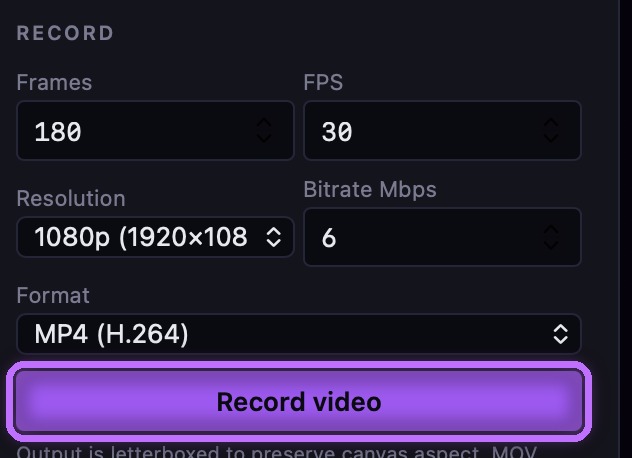
The Record group — set frames, FPS, resolution, bitrate and format, then click Record video. 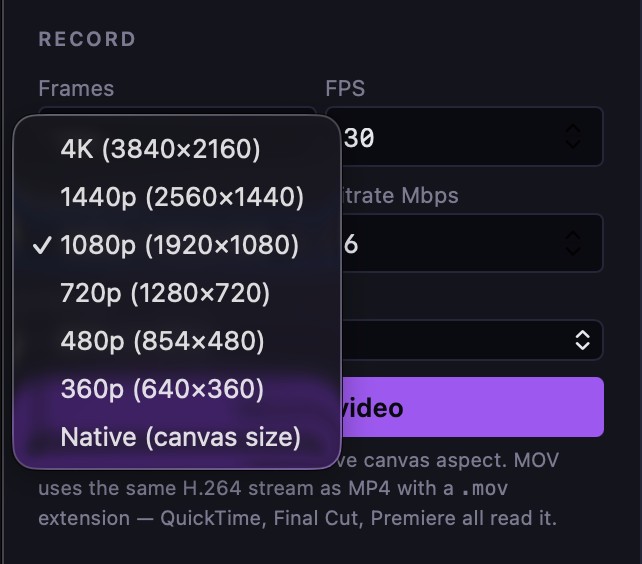
Resolution — presets up to 4K, or Native canvas size. 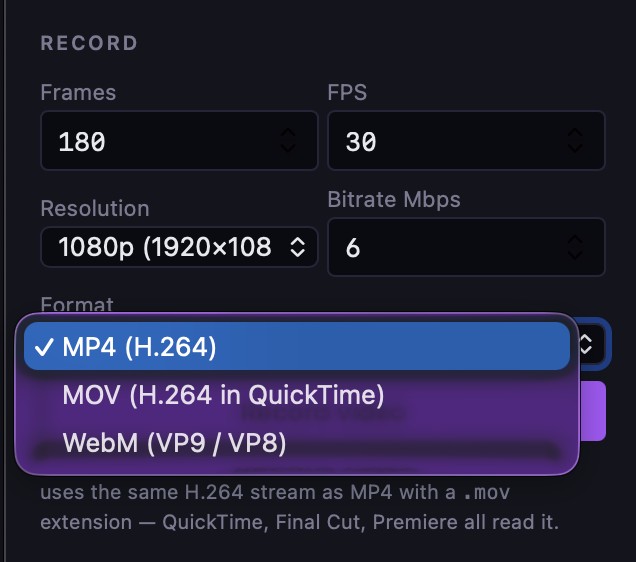
Format — MP4, MOV, or WebM. -
Save a PNG still. Pick a PNG resolution (native canvas size, a preset up to 4K, or a custom width and height), then click Download PNG. For print, set the PPI so design software lays the image out at the right physical size.
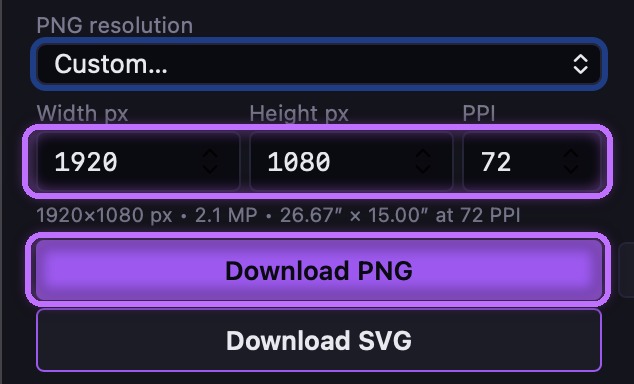
Custom width, height and PPI — the readout shows the print size — then Download PNG. 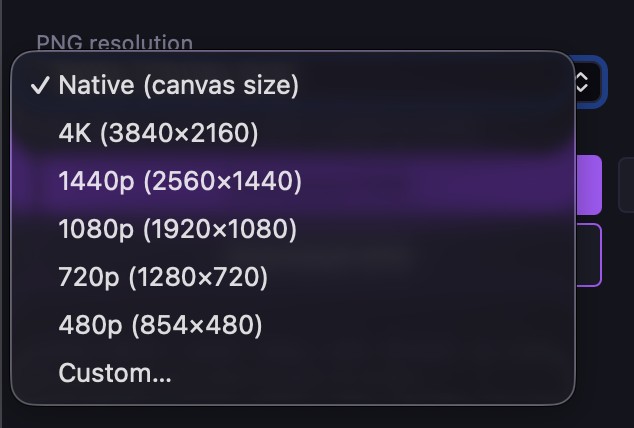
PNG resolution — Native, presets up to 4K, or Custom. -
Export an SVG. For 2D fractal types, click Download SVG to export a clean, scalable vector — perfect for logos, print, and large-format work. (3D and raster fractals can't be vectorized; use PNG or video for those.)
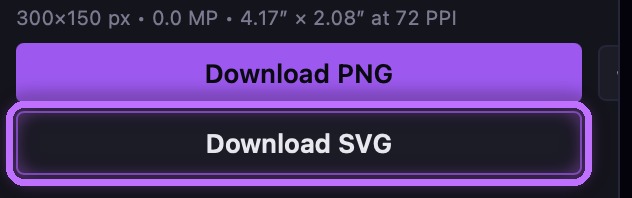
Download SVG — available for 2D fractal types.
Exports are video-only. Spiralyst Lab never writes captured audio into an exported file. Whatever you play — system audio or a microphone — is analyzed to drive the visuals and then discarded. That keeps your exports clear of music you may not hold the rights to redistribute: what you get is your artwork, not a copy of someone's track. Add your own licensed audio in any video editor.
Troubleshooting: If a frame is very heavy to render (lots of glow, layers, or density), Spiralyst Lab warns before recording — lower those first for a smooth capture. Don't see the SVG option working? It only applies to 2D fractal types; 3D and raster types export as PNG or video instead. For batch or scripted PNG export, see Automation & API.
Related
Prefer to watch? See the tutorial Exporting loops, stills & vectors.