Help guide · macOS 14.4+
Letting Spiralyst Lab hear your system audio
Spiralyst Lab can react to anything playing on your Mac — DJ software, a music app, browser tabs, a DAW. The first time you use system audio, macOS asks for a one-time permission called "System Audio Recording Only." This guide walks through granting it.
-
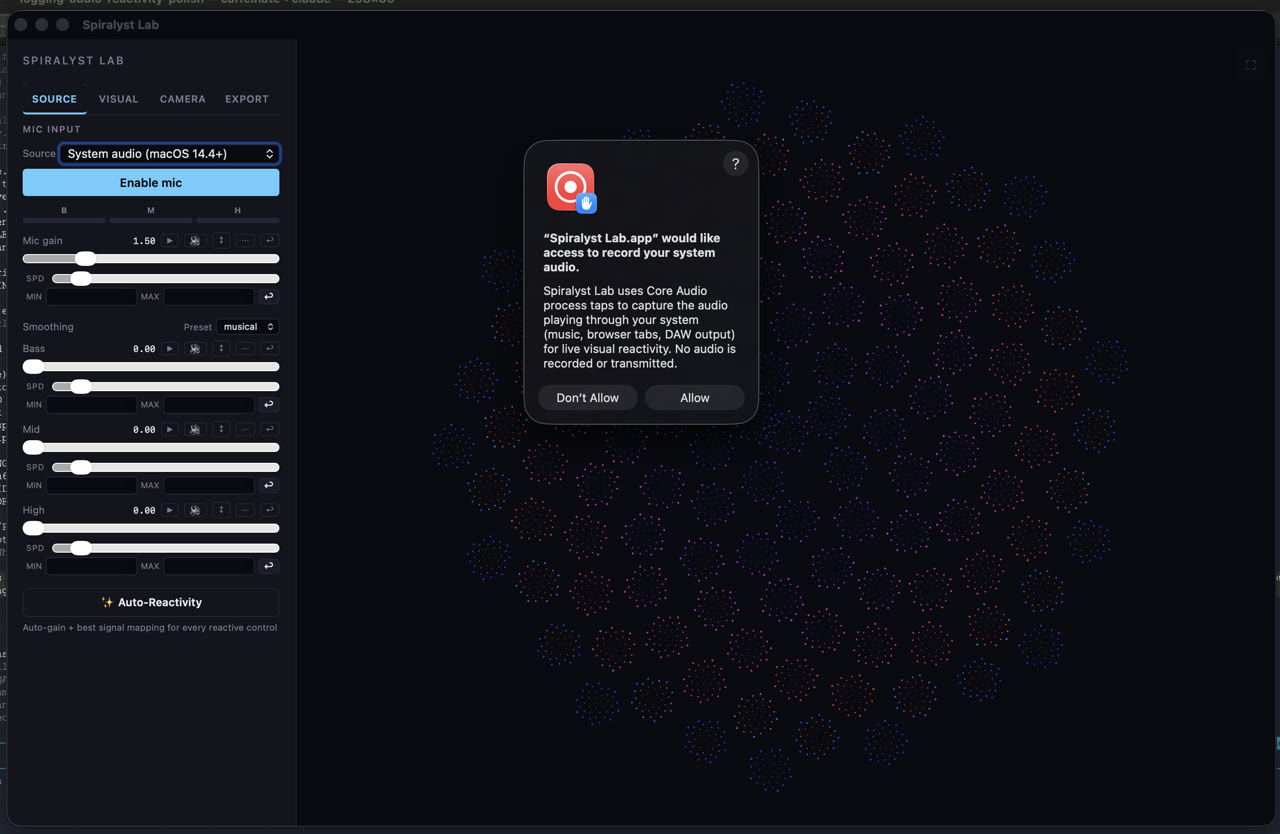
Choose System audio. In Spiralyst Lab, open the Source tab and select "System audio (macOS 14.4+)". macOS pops up a permission request.
-
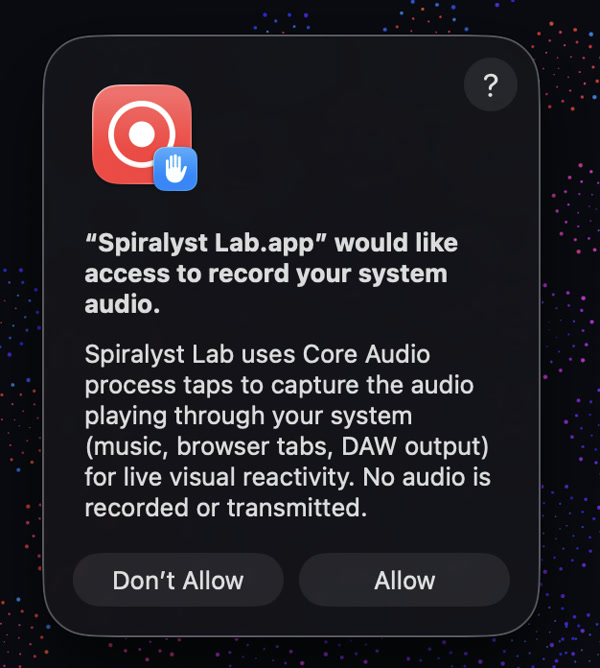
Click Allow. The dialog reads "Spiralyst Lab.app would like access to record your system audio." Click Allow. No audio is recorded or transmitted; it is analyzed live for visuals and discarded.
-
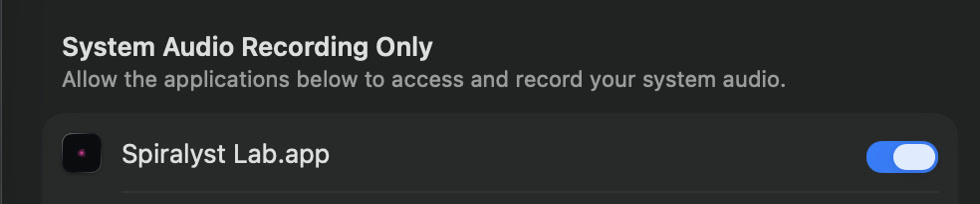
Turn it on or off any time. Go to System Settings → Privacy & Security → System Audio Recording Only and make sure Spiralyst Lab.app is switched on.
Your privacy: Spiralyst Lab uses Core Audio process taps purely for live visual reactivity. No audio is recorded or transmitted — it is analyzed in the moment and discarded. Exports are video-only, too: captured audio is never written into an exported file.
Troubleshooting: Not hearing anything? Confirm the toggle is on, that audio is actually playing through your Mac, and that you're on macOS 14.4 or later. Running off live gear? Switch the Source to a microphone or any audio input device your Mac sees — a USB interface, your DJ mixer or controller routed in, line-in — using the standard audio-input permission.
Related
Prefer to watch? See the tutorial Capturing your system audio. Want a mic or audio input device instead? See Using a microphone or audio input device — set Source to Microphone and pick the device from the Mic input dropdown.