
Help guide · macOS 14.4+
Map sound to motion with frequency bands
Wire any control to a specific slice of the sound — the kick, the snare, the hats, the vocal. Open a control's reactivity popover, pick a frequency band on the live spectrum, choose how it reads the sound, and dial it in. Save a band you like so you can reuse it anywhere.
Tutorial video — coming soon
-
Open a control's reactivity popover. Next to any reactive control is a 🔊 button. Click it to open the spectrum popover for that control — a live readout of the frequencies coming in from your audio source.
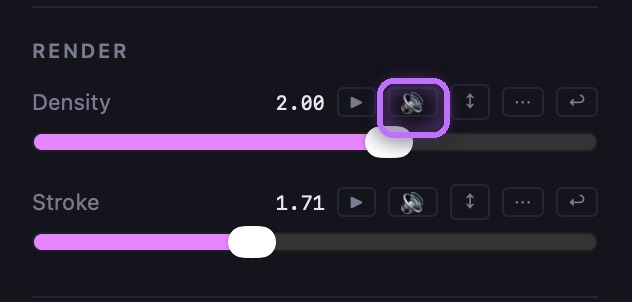
Click the 🔊 next to any reactive control to open its spectrum popover. -
Pick a frequency band. Drag the band's left and right handles across the live spectrum to cover the part of the sound you want — low for the kick and bass, mids for the snare and vocals, highs for the hats and cymbals. You can also type exact Hz values for the low and high edges.
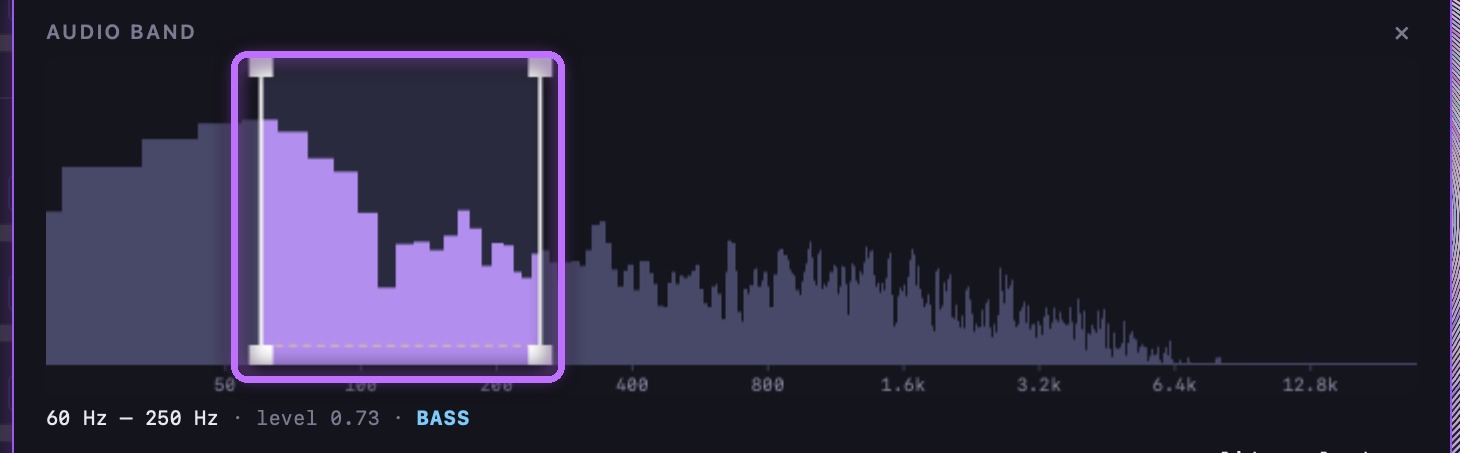
Drag the band's handles across the live spectrum — here, the 60–250 Hz bass range. -
Choose the signal, then dial in gain and squelch. Pick how the band reads the sound — Amplitude (loudness in the band), Flux (beat-onset energy, great for punchy hits), or Centroid (brightness). Then set Gain — how strongly the band drives the control (up if it barely moves, down if it slams to the top) — and Squelch (the noise floor / Threshold), which gates out a steady background so only the hits above it register.

Signal (Amplitude / Flux / Centroid), then Gain and Threshold (squelch). -
Save the band for reuse. Found a band that works? Type a name and click Save to add it to your band library, then apply it to other controls — its range and feel carry across. Band presets travel with you in a preset bundle (see Presets & scenes).

Name the band and click Save to reuse it on any control.
Troubleshooting: Nothing reacting? Make sure an audio source is enabled and music is actually playing — bands read live audio. If a control is pinned at its max, lower gain or raise squelch — or just run Auto-Reactivity to tune it for you (see the Auto-Reactivity guide). Higher FFT resolution means narrow bands like a kick (40–80 Hz) read cleanly.
Related
Prefer to watch? See the tutorial Mapping frequencies to motion.