Help guide · macOS 14.4+
Install Spiralyst Lab and take the tour
From a fresh download to your first reactive scene: open the disk image, drag the app to Applications, open it for the first time, accept the license, register with your serial (or run the trial), and find your way around the four tabs.
-
Install and open it. Double-click the downloaded
SpiralystLab.dmgto open the disk image, drag Spiralyst Lab onto the Applications folder, then double-click it to launch. Spiralyst Lab is signed and notarized by Apple, so it opens normally — no security warning or right-click needed.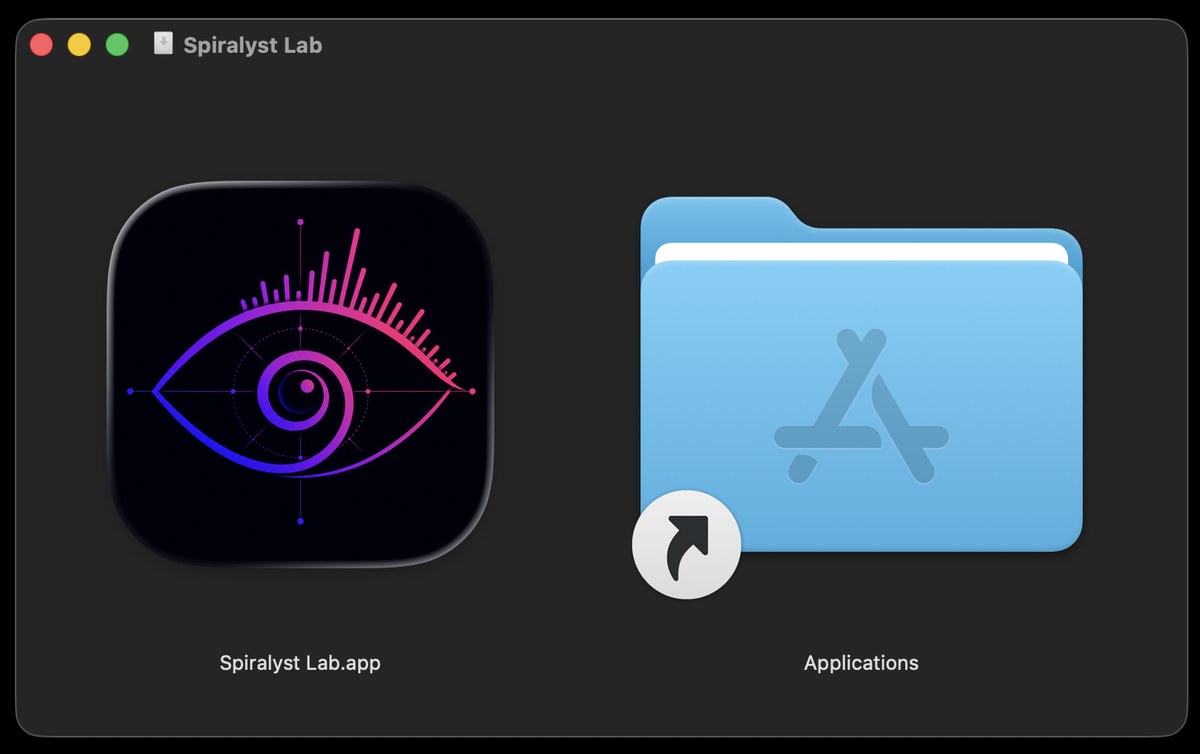
Drag Spiralyst Lab onto Applications to install. -
Accept the license. On first launch a full-screen agreement appears. Scroll to the bottom of the license to enable the Agree button, then click Agree to continue. (Acceptance is remembered; you'll only see this again if the license terms change.)
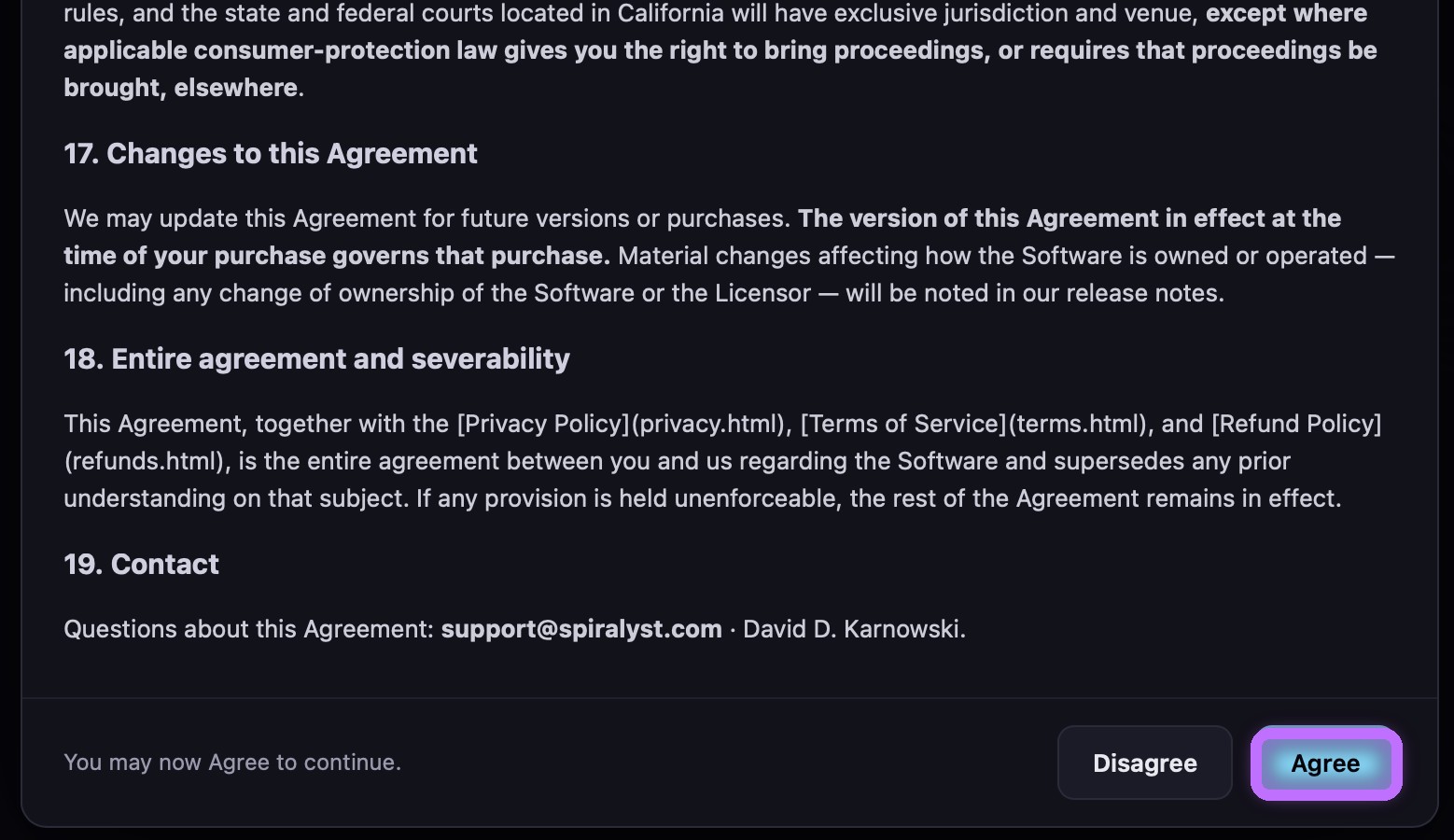
Scroll to the bottom of the agreement to enable Agree, then click it. -
Register, or run the trial. Enter your serial number to register your one-year license, or continue in trial mode to try it first. Your serial arrives by email after purchase; registering unlocks the full app for one year.
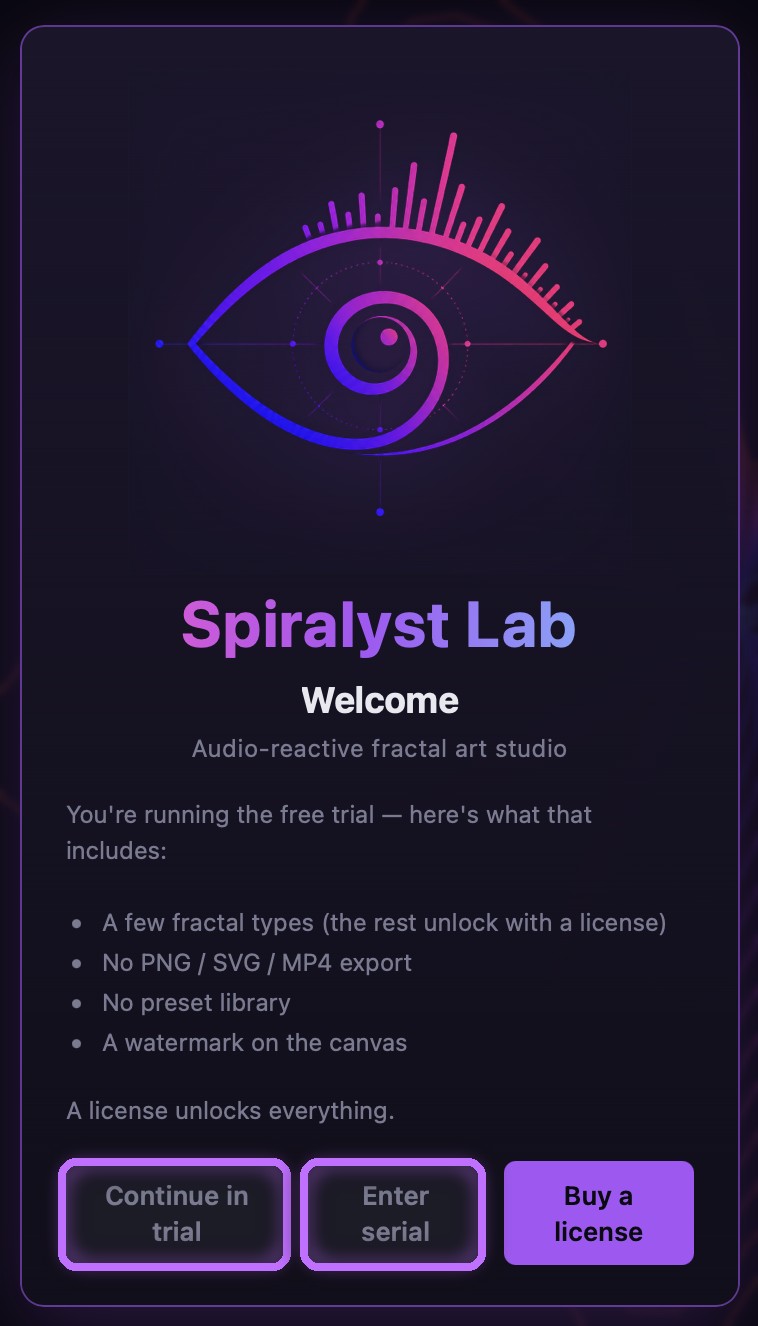
Continue in trial, or Enter serial to register (Buy a license opens checkout). 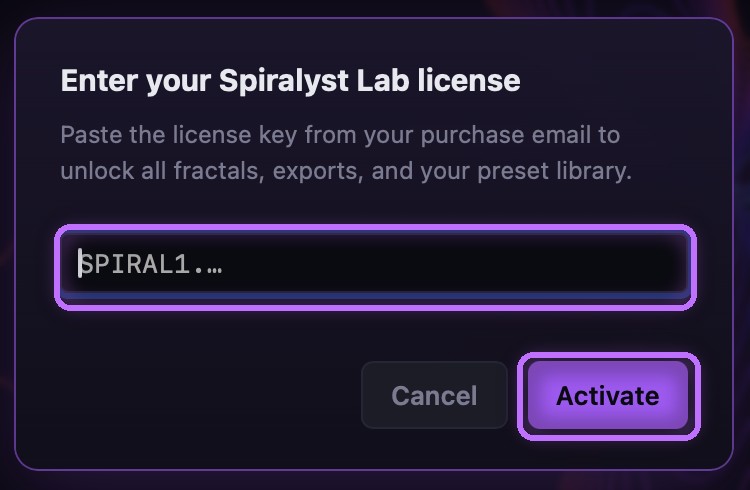
Paste the key from your email, then Activate. 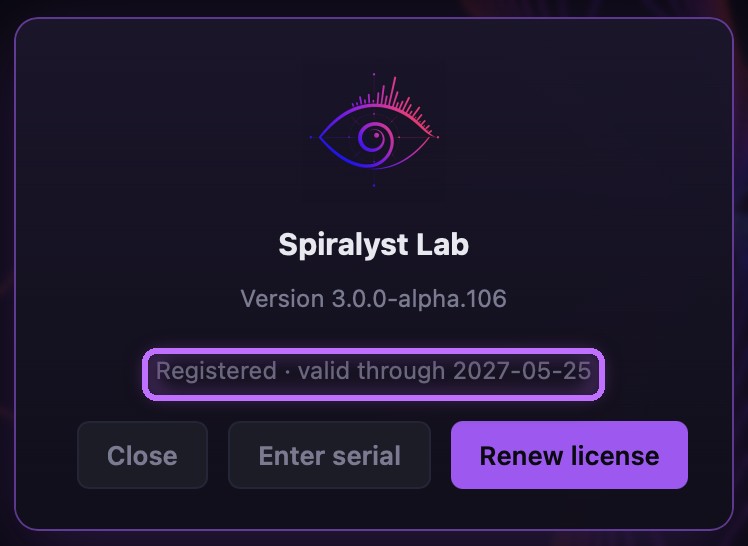
Registered — valid through your one-year term. -
Take the four-tab tour. The sidebar has four tabs. Source picks what the app listens to (system audio, a mic, or an input device) and the fractal type. Visual controls color, geometry, glow, effects, and layers. Camera handles the view and (for 3D fractals) lighting and quality. Export holds your presets, video recording, and PNG/SVG stills.
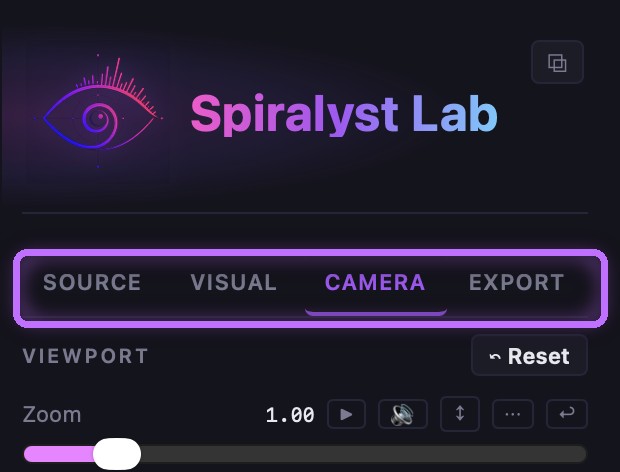
Four tabs: Source, Visual, Camera, Export.
Audio permission: The first time you capture system audio or use a microphone, macOS asks for permission — allow it so Spiralyst Lab can hear your sound. See Capturing system audio and Microphone access.
Troubleshooting: Need macOS 14.4 or later on an Apple Silicon Mac. If a download was interrupted, re-download and reinstall. Serial not arrived yet? Check spam, then email support.
Related
Prefer to watch? See the tutorial Getting started with Spiralyst Lab.